
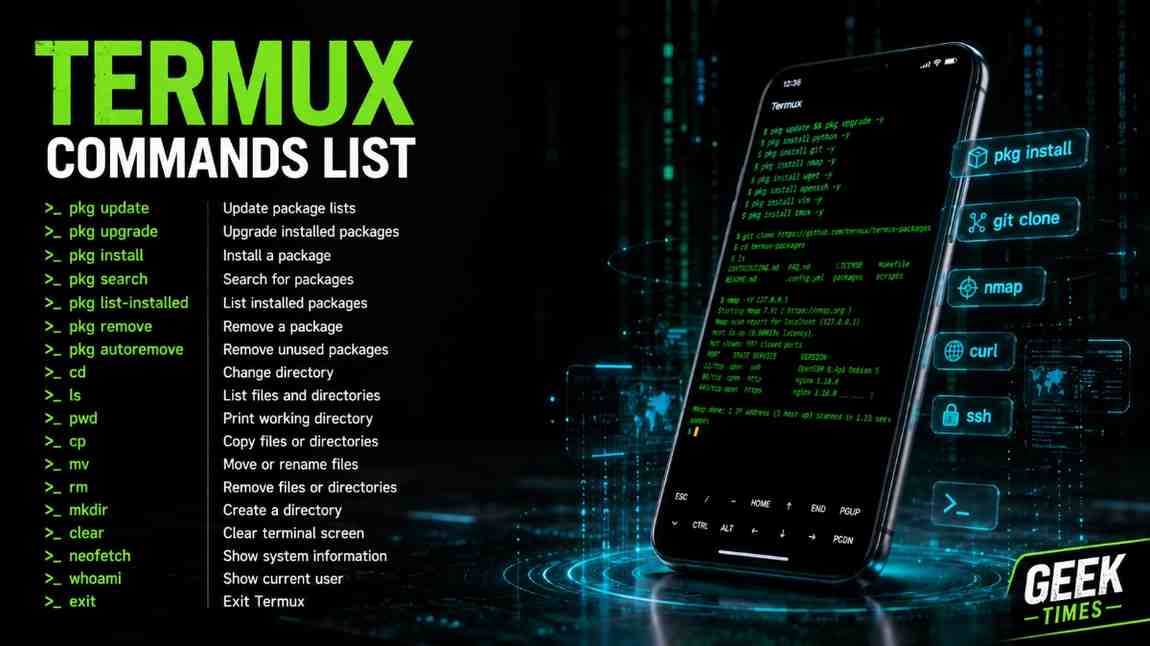
If You Are Looking For A Complete Termux Commands List Then You Have Come To The Right Place. In This Post We Will Cover Every Important Termux Command From Basic To Advanced With Proper Explanation And Examples So That You Can Easily Understand And Use Them On Your Android Device. Whether You Are A Complete Beginner Who Is Just Getting Started With Termux Or An Advanced User Who Wants To Explore More Commands, This Post Has Everything You Need.
We Will Go Through All The Important Categories Of Termux Commands Including Package Management Commands, File System Commands, Networking Commands, Text Editing Commands, Process Management Commands And Many More. So Without Wasting Any More Time Let Us Get Started With The Complete Termux Commands List.
- What Is Termux?
- How To Get Started With Termux?
- Termux Basic Commands List
- Termux Package Management Commands
- Termux File System Commands
- Termux File Permission Commands
- Termux Text Editor Commands
- Termux Networking Commands
- Termux Process Management Commands
- Termux Python Commands
- Termux Git Commands
- Termux Storage Commands
- Termux SSH Commands
- Termux Keyboard Shortcuts
- Conclusion
- Frequently Asked Questions
What Is Termux?
Termux Is A Free And Open Source Terminal Emulator Application For Android That Allows You To Run A Full Linux Environment Directly On Your Android Device Without Needing Root Permission. Termux Gives You Access To A Powerful Command Line Interface Where You Can Run Linux Commands, Install Packages, Write Scripts, Run Programming Languages Like Python And Much More All From Your Android Phone Or Tablet.
Termux Is Available For Free On F-Droid And Is Used By Millions Of Developers, Security Researchers And Linux Enthusiasts All Around The World. The Best Thing About Termux Is That It Does Not Need Root Access To Work And Can Be Used On Almost Any Android Device That Runs Android 7.0 Or Higher.
How To Get Started With Termux?
Before You Start Using The Termux Commands List You Need To Make Sure That Termux Is Properly Installed And Updated On Your Android Device. Follow The Below Steps To Get Started:
Step 1: Download And Install Termux From My Website. Always Download Termux From F-Droid And Not From The Google Play Store As The Play Store Version Is No Longer Updated.
Step 2: Open Termux And Run The Below Command To Update And Upgrade All The Packages Before You Start Using Termux.
pkg update && pkg upgrade -yStep 3: After The Update Is Done You Are Ready To Start Using All The Termux Commands Listed Below.
Termux Basic Commands List
These Are The Most Basic And Important Termux Commands That Every Termux User Should Know. These Commands Are The Foundation Of Using Termux And You Will Use These Commands Almost Every Day.
clear
The clear Command Is Used To Clear The Termux Terminal Screen. When Your Terminal Gets Too Cluttered With Output You Can Use This Command To Clean It Up.
clearecho
The echo Command Is Used To Print A Text Or A Message On The Termux Terminal Screen. It Is One Of The Most Used Commands In Termux.
echo "Hello World"pwd
The pwd Command Stands For Print Working Directory. It Is Used To Show The Current Directory That You Are In Right Now In Termux.
pwd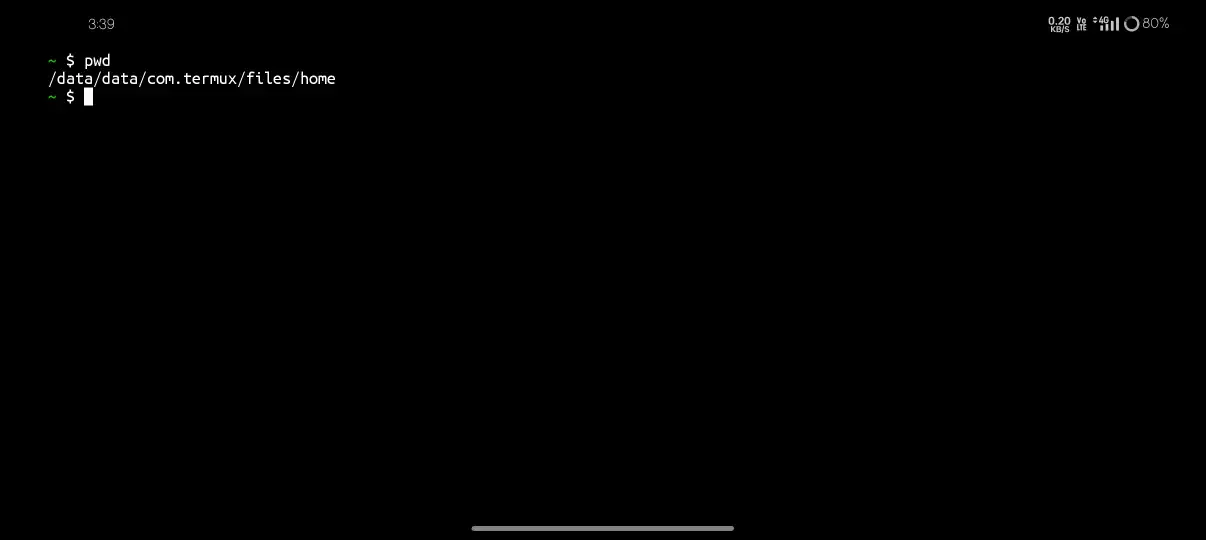
whoami
The whoami Command Is Used To Display The Name Of The Current User That Is Logged Into Termux. In Termux It Will Usually Show u0_a Followed By A Number.
whoamidate
The date Command Is Used To Display The Current Date And Time In Your Termux Terminal.
datehistory
The history Command Is Used To Show A List Of All The Commands That You Have Previously Typed In Termux During Your Session.
historyexit
The exit Command Is Used To Close And Exit The Current Termux Session.
exithelp
The help Command Can Be Used To Get Help Information About Any Built In Termux Command. You Can Also Use –help Flag After Any Command To Get More Information About That Command.
[command] --helpTermux Package Management Commands
Package Management Commands Are Used To Install, Remove, Update And Manage All The Packages And Tools In Termux. These Are Some Of The Most Important Commands You Will Use In Termux.
pkg update
The pkg update Command Is Used To Update The List Of All Available Packages In Termux. You Should Always Run This Command Before Installing Any New Package.
pkg update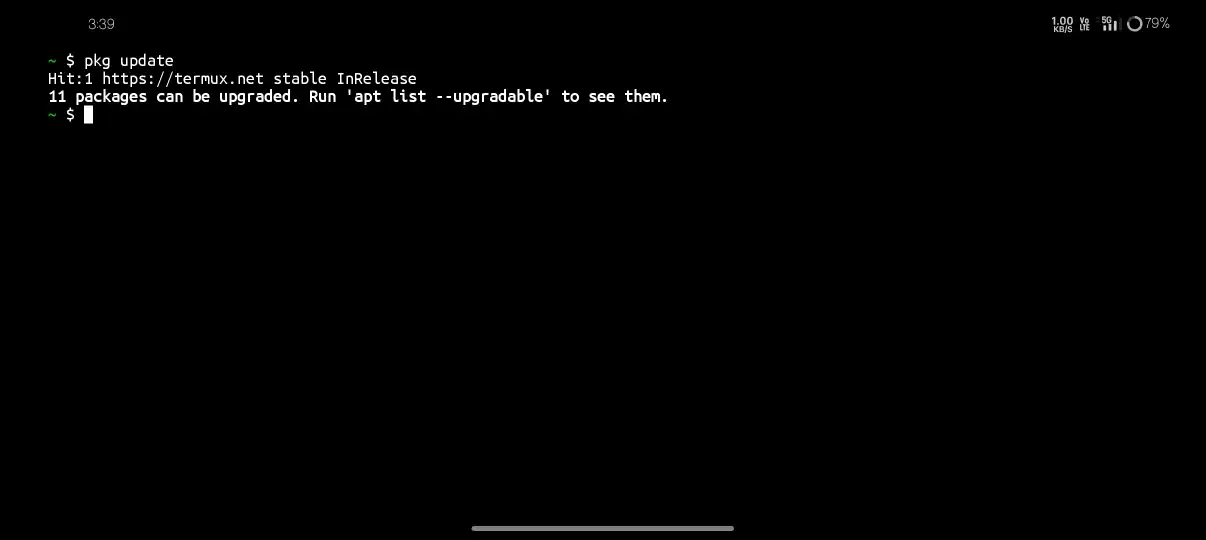
pkg upgrade
The pkg upgrade Command Is Used To Upgrade All The Already Installed Packages In Termux To Their Latest Available Versions.
pkg upgrade -y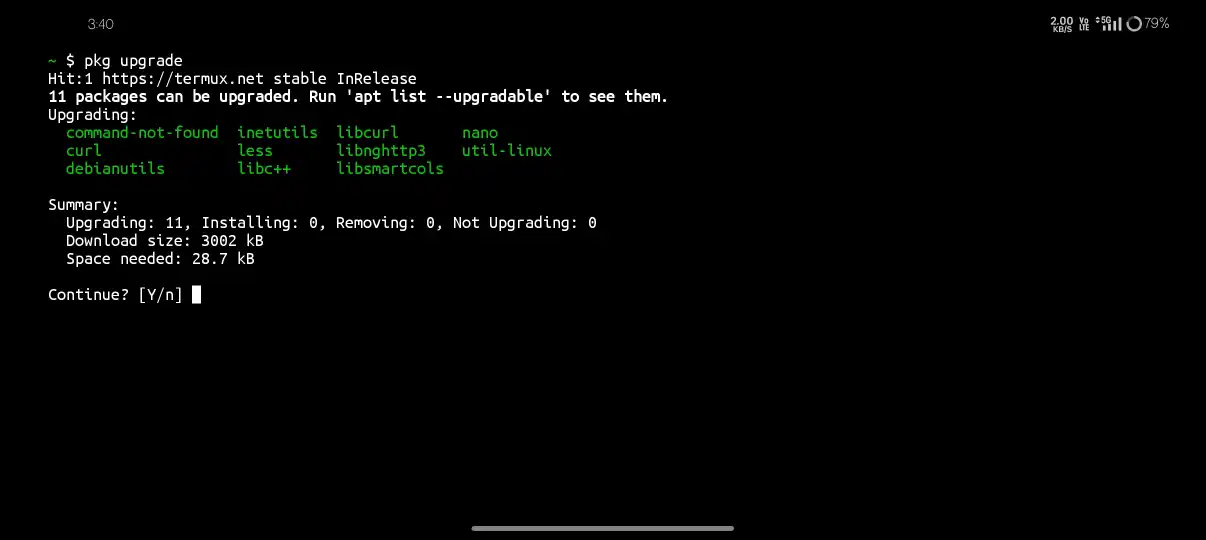
pkg update && pkg upgrade
This Is The Combined Command That Updates The Package List And Then Upgrades All The Installed Packages In One Single Step. This Is The Recommended Way To Keep Termux Updated.
pkg update && pkg upgrade -ypkg install
The pkg install Command Is Used To Install Any New Package Or Tool In Termux. Replace [package-name] With The Name Of The Package You Want To Install.
pkg install [package-name] -yExamples:
pkg install python -y
pkg install git -y
pkg install nmap -y
pkg install wget -ypkg uninstall
The pkg uninstall Command Is Used To Remove Or Uninstall Any Installed Package From Termux.
pkg uninstall [package-name]pkg list-installed
The pkg list-installed Command Is Used To Show A List Of All The Packages That Are Currently Installed In Your Termux.
pkg list-installedpkg list-all
The pkg list-all Command Is Used To Show A List Of All The Packages That Are Available To Install In Termux.
pkg list-allpkg search
The pkg search Command Is Used To Search For A Specific Package In Termux. Replace [keyword] With The Name Of The Package You Are Looking For.
pkg search [keyword]pkg show
The pkg show Command Is Used To Show Detailed Information About A Specific Package In Termux Including Its Version, Size And Dependencies.
pkg show [package-name]apt-get install
You Can Also Use The apt-get Command To Install Packages In Termux. It Works The Same Way As pkg install But Is The Older Style Command.
apt-get install [package-name] -yTermux File System Commands
File System Commands Are Used To Navigate, Create, Delete And Manage Files And Directories In Termux. Another Category In Termux Commands List. These Commands Are Very Important For Every Termux User.
ls
The ls Command Is Used To List All The Files And Directories Inside The Current Directory In Termux.
lsYou Can Also Use ls -la To Show All Files Including Hidden Files With Their Detailed Information Like Permissions, Size And Date.
ls -la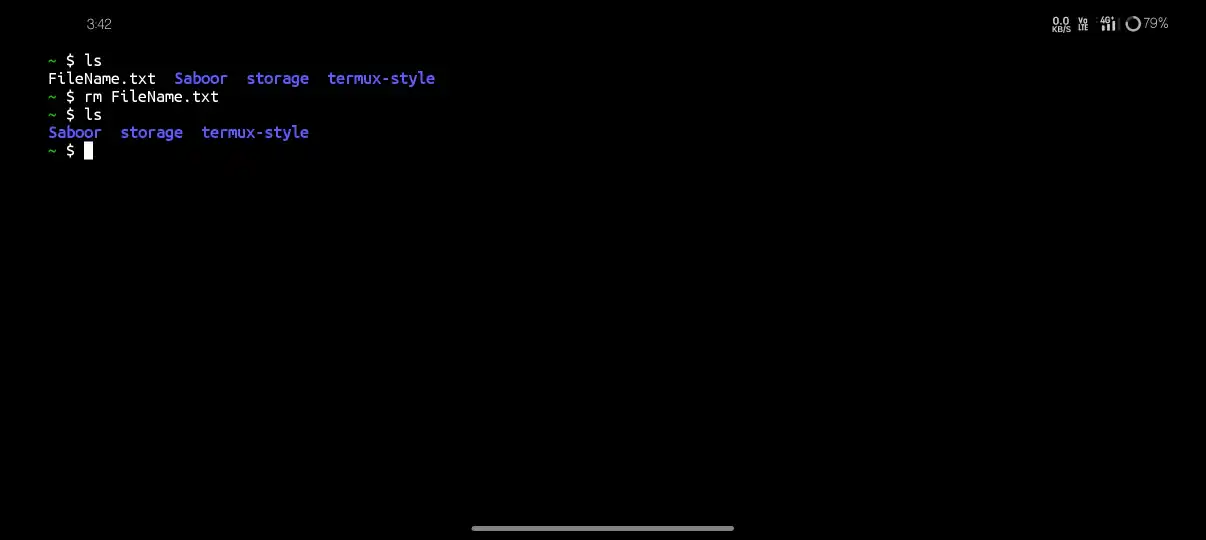
cd
The cd Command Stands For Change Directory And Is Used To Navigate Between Directories In Termux.
cd [directory-name]Examples:
cd Downloads
cd /sdcard
cd ..
cd ~mkdir
The mkdir Command Is Used To Create A New Directory Or Folder In Termux.
mkdir [directory-name]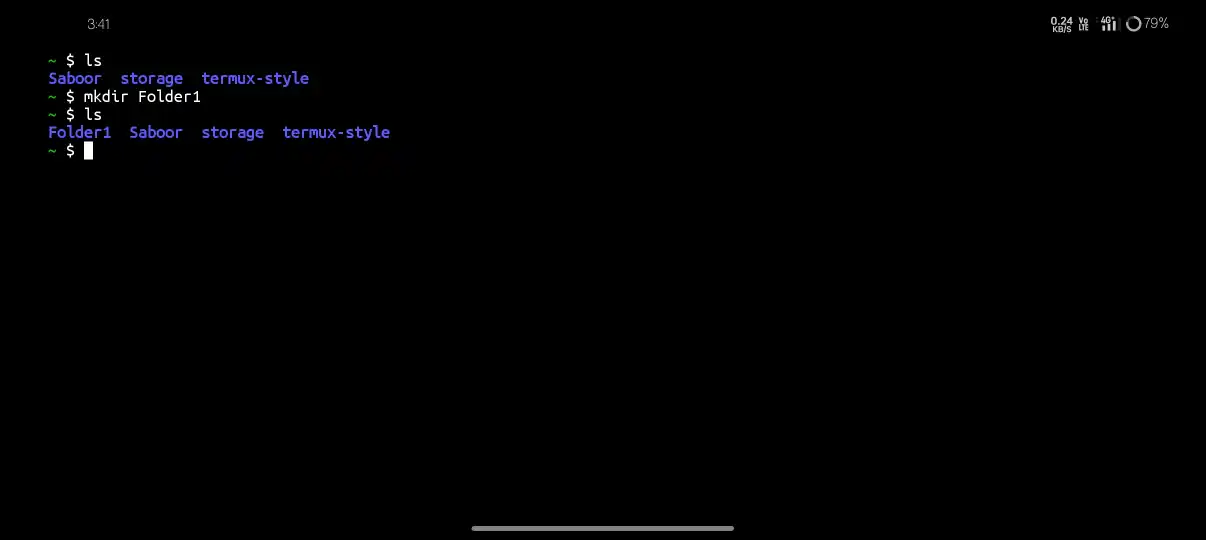
rmdir
The rmdir Command Is Used To Remove Or Delete An Empty Directory In Termux.
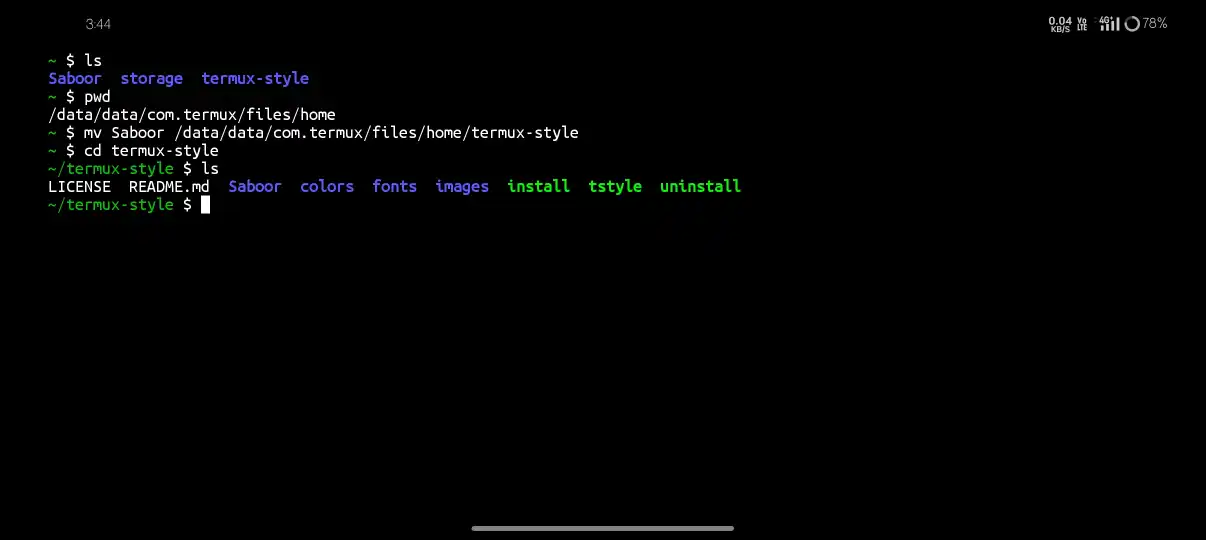
rmdir [directory-name]touch
The touch Command Is Used To Create A New Empty File In Termux.
touch [filename]Example:
touch myfile.txtrm
The rm Command Is Used To Remove Or Delete A File In Termux. Be Careful When Using This Command As Deleted Files Cannot Be Recovered.
rm [filename]To Delete A Directory And All Its Contents Use The -rf Flag.
rm -rf [directory-name]cp
The cp Command Is Used To Copy A File From One Location To Another In Termux.
cp [source] [destination]mv
The mv Command Is Used To Move A File From One Location To Another In Termux. It Can Also Be Used To Rename A File.
mv [source] [destination]cat
The cat Command Is Used To Display The Contents Of A File Directly In The Termux Terminal.
cat [filename]head
The head Command Is Used To Display The First 10 Lines Of A File In Termux. You Can Also Specify The Number Of Lines Using The -n Flag.
head [filename]
head -n 20 [filename]tail
The tail Command Is Used To Display The Last 10 Lines Of A File In Termux. You Can Also Specify The Number Of Lines Using The -n Flag.
tail [filename]
tail -n 20 [filename]find
The find Command Is Used To Search For Files And Directories In Termux Based On Different Criteria Like Name, Size Or Date.
find [path] -name [filename]Example:
find . -name "*.txt"grep
The grep Command Is Used To Search For A Specific Pattern Or Text Inside A File In Termux.
grep "[pattern]" [filename]wc
The wc Command Is Used To Count The Number Of Lines, Words And Characters In A File In Termux.
wc [filename]zip
The zip Command Is Used To Compress Files Into A ZIP Archive In Termux.
zip [archive-name.zip] [filename]unzip
The unzip Command Is Used To Extract Files From A ZIP Archive In Termux.
unzip [archive-name.zip]Termux File Permission Commands
File Permission Commands Are Used To View And Change The Permissions Of Files And Directories In Termux. Another Category In Termux Commands List. These Commands Are Very Useful When Working With Scripts And Tools.
chmod
The chmod Command Is Used To Change The Permission Of A File Or Directory In Termux. The Most Common Use Is To Make A Script Executable.
chmod +x [filename]To Set Specific Numeric Permissions Use The Number Format.
chmod 755 [filename]
chmod 777 [filename]chown
The chown Command Is Used To Change The Owner Of A File Or Directory In Termux.
chown [user] [filename]Termux Text Editor Commands
Termux Has Two Main Text Editors That You Can Use To Create And Edit Files Directly In The Terminal. Another Category In Termux Commands List. These Are nano And vim.
nano
The nano Command Is Used To Open The Nano Text Editor In Termux. Nano Is A Very Simple And Beginner Friendly Text Editor.
nano [filename]Useful Nano Shortcuts:
- CTRL + X — Exit Nano
- CTRL + S — Save The File
- CTRL + K — Cut A Line
- CTRL + U — Paste A Line
- CTRL + W — Search In The File
vim
The vim Command Is Used To Open The Vim Text Editor In Termux. Vim Is A More Advanced Text Editor With Many Features.
vim [filename]Useful Vim Commands:
- i — Enter Insert Mode To Start Typing
- ESC — Exit Insert Mode
- :w — Save The File
- :q — Quit Vim
- :wq — Save And Quit Vim
Termux Networking Commands
Networking Commands Are Used To Perform Network Related Tasks In Termux Like Checking IP Addresses, Downloading Files And Testing Network Connectivity.
ping
The ping Command Is Used To Test The Network Connectivity Between Your Device And A Target Host In Termux.
ping [hostname or IP]Example:
ping google.comwget
The wget Command Is Used To Download Files From The Internet Directly In Termux. Install It First Using pkg install wget -y.
wget [URL]curl
The curl Command Is Used To Transfer Data From Or To A Server In Termux. It Supports Many Protocols Including HTTP, HTTPS And FTP.
curl [URL]ifconfig
The ifconfig Command Is Used To Display The Network Interface Information Including Your IP Address In Termux.
ifconfignetstat
The netstat Command Is Used To Display All The Active Network Connections And Listening Ports In Termux.
netstatnslookup
The nslookup Command Is Used To Query DNS Records And Find The IP Address Of A Domain Name In Termux.
nslookup [domain]traceroute
The traceroute Command Is Used To Trace The Network Path Between Your Device And A Target Host In Termux.
traceroute [hostname]ssh
The ssh Command Is Used To Connect To A Remote Server Securely Using The SSH Protocol In Termux.
ssh [username]@[hostname]Termux Process Management Commands
Process Management Commands Are Used To View, Manage And Control The Running Processes In Termux.
ps
The ps Command Is Used To Display A List Of All The Currently Running Processes In Termux.
pstop
The top Command Is Used To Display A Real Time View Of All The Running Processes Along With Their CPU And Memory Usage In Termux.
topkill
The kill Command Is Used To Terminate A Running Process In Termux Using Its Process ID.
kill [PID]killall
The killall Command Is Used To Terminate All Processes With A Specific Name In Termux.
killall [process-name]bg
The bg Command Is Used To Send A Paused Process To Run In The Background In Termux.
bgfg
The fg Command Is Used To Bring A Background Process Back To The Foreground In Termux.
fgTermux Python Commands
Python Is One Of The Most Popular Programming Languages And Can Be Very Easily Installed And Used In Termux. Another Category In Termux Commands List. Here Are The Most Important Python Commands For Termux.
Install Python In Termux
pkg install python -yCheck Python Version
python --versionRun A Python Script
python [script-name.py]Open Python Interactive Shell
pythonInstall Python Libraries Using Pip
pip install [library-name]Examples:
pip install requests
pip install numpy
pip install flaskList Installed Python Libraries
pip listUpgrade A Python Library
pip install --upgrade [library-name]Termux Git Commands
Git Is A Very Popular Version Control System That Can Be Easily Installed And Used In Termux. Here Are The Most Important Git Commands For Termux.
Install Git In Termux
pkg install git -yClone A Repository From GitHub
git clone [repository-URL]Check Git Version
git --versionInitialize A New Git Repository
git initCheck Repository Status
git statusAdd Files To Staging Area
git add .Commit Changes
git commit -m "Your commit message"Push Changes To GitHub
git push origin mainPull Latest Changes From GitHub
git pullCheck Commit History
git logTermux Storage Commands
Storage Commands Are Used To Give Termux Access To Your Android Device Storage And To Manage Files Between Termux And Your Android File System.
termux-setup-storage
The termux-setup-storage Command Is Used To Give Termux Permission To Access Your Android Device Storage. You Must Run This Command First Before You Can Access Your Android Files From Termux.
termux-setup-storageAfter Running This Command A Permission Dialog Will Appear On Your Screen. Allow The Storage Permission And Then You Will Be Able To Access Your Android Storage From Termux Using The /sdcard Path.
Access Android Storage In Termux
cd /sdcardCheck Available Storage Space
df -hCheck Directory Size
du -sh [directory-name]Termux SSH Commands
SSH Commands Are Used To Connect To Remote Servers And To Set Up SSH Server In Termux So That You Can Access Termux From Another Device.
Install OpenSSH In Termux
pkg install openssh -yStart SSH Server In Termux
sshdConnect To A Remote Server From Termux
ssh [username]@[IP-address]Connect To A Remote Server On A Specific Port
ssh -p [port] [username]@[IP-address]Generate SSH Key Pair In Termux
ssh-keygenStop SSH Server In Termux
pkill sshdTermux Keyboard Shortcuts
These Keyboard Shortcuts Are Very Useful For Working Faster And More Efficiently In Termux.
| Shortcut | Function |
|---|---|
| CTRL + C | Stop The Currently Running Command |
| CTRL + D | Exit The Current Termux Session |
| CTRL + Z | Pause The Currently Running Process |
| CTRL + L | Clear The Terminal Screen |
| CTRL + A | Move Cursor To The Beginning Of The Line |
| CTRL + E | Move Cursor To The End Of The Line |
| CTRL + U | Clear The Entire Current Line |
| CTRL + K | Clear Everything After The Cursor |
| CTRL + W | Delete The Word Before The Cursor |
| TAB | Auto Complete Commands And File Names |
| Volume Up + Q | Show The Termux Extra Keys Row |
| Volume Up + W | Open A New Termux Session |
Conclusion
In This Post We Have Covered A Complete And Detailed Termux Commands List From Basic To Advanced. We Covered All The Important Categories Including Basic Commands, Package Management Commands, File System Commands, File Permission Commands, Text Editor Commands, Networking Commands, Process Management Commands, Python Commands, Git Commands, Storage Commands And SSH Commands. All These Commands Will Help You Work More Efficiently And Productively In Termux On Your Android Device. Bookmark This Post So That You Can Come Back And Refer To It Whenever You Need To Look Up A Termux Command. If You Have Any Query Related To This Post You Can Just Comment Below Or Contact Us Through The Contact Us Page. Thanks For Reading 😊
Frequently Asked Questions
What Is The First Command To Run In Termux?
The First Command You Should Always Run After Installing Termux Is pkg update && pkg upgrade -y. This Will Update All The Packages In Termux And Make Sure Everything Is Up To Date Before You Start Using It.
How Do I Install A Package In Termux?
You Can Install Any Package In Termux By Using The pkg install [package-name] -y Command. For Example To Install Python You Can Use pkg install python -y.
How Do I Access My Android Storage In Termux?
You Can Access Your Android Storage In Termux By First Running termux-setup-storage To Grant Storage Permission And Then Using cd /sdcard To Navigate To Your Android Storage.
What Is The Difference Between pkg update And pkg upgrade In Termux?
pkg update Updates The List Of Available Packages In Termux While pkg upgrade Actually Upgrades The Already Installed Packages To Their Latest Versions. You Should Run Both Commands Together Using pkg update && pkg upgrade -y.
How Do I Stop A Running Command In Termux?
You Can Stop Any Running Command In Termux By Pressing CTRL + C On Your Keyboard. This Will Immediately Terminate The Currently Running Process In Termux.
Can I Run Python In Termux?
Yes, You Can Easily Run Python In Termux By First Installing It Using pkg install python -y And Then Running Your Python Scripts Using python [script-name.py] Command.
How Do I Clear The Termux Screen?
You Can Clear The Termux Terminal Screen By Typing The clear Command And Pressing Enter. You Can Also Use The CTRL + L Keyboard Shortcut To Clear The Screen Faster.
Is Termux Safe To Use?
Yes, Termux Is A Safe And Legitimate Application That Is Available On F-Droid. It Is Used By Millions Of Developers And Linux Enthusiasts All Over The World. However You Should Always Download Termux From F-Droid And Not From The Google Play Store As The Play Store Version Is No Longer Updated And May Have Issues.